1. Getting Started
Learning Management System (LMS)
Login
i. Visit the LMS site
https://lms.ustechsolutions.com/
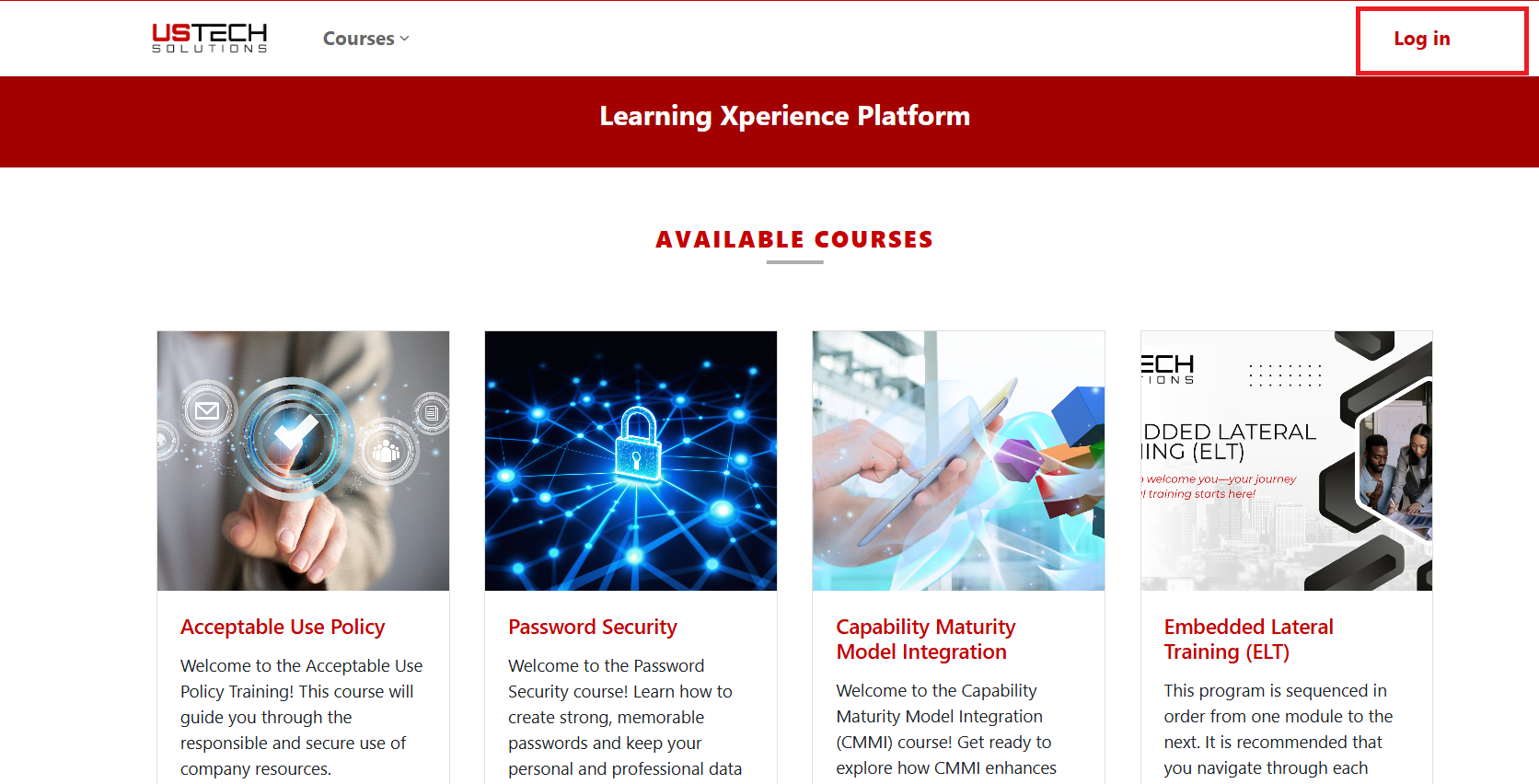
Launch the URL and click on Log in.
Refer to the image.

Learning Management System (LMS)
Login
i. Visit the LMS site
https://lms.ustechsolutions.com/
Launch the URL and click on Log in.
Refer to the image.
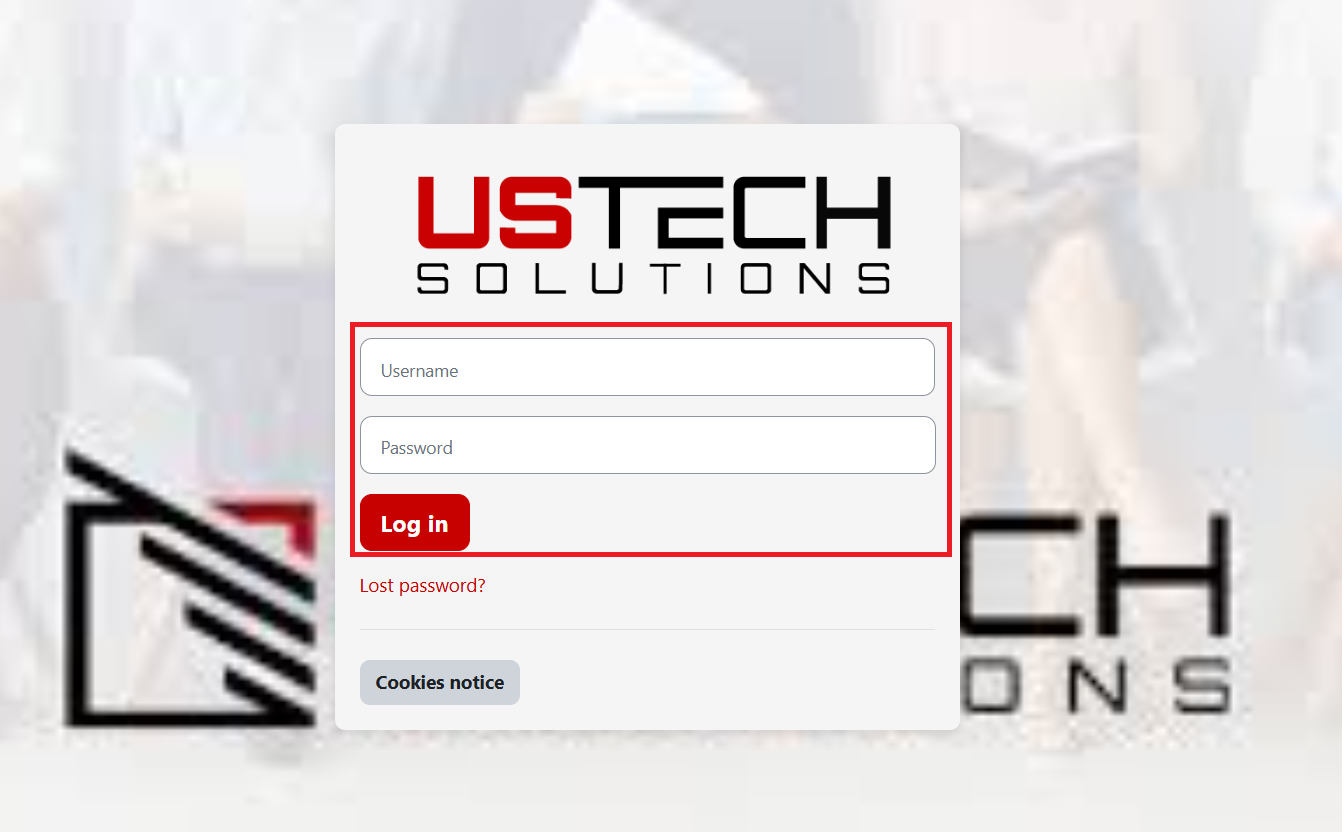
ii. Enter your username and password.
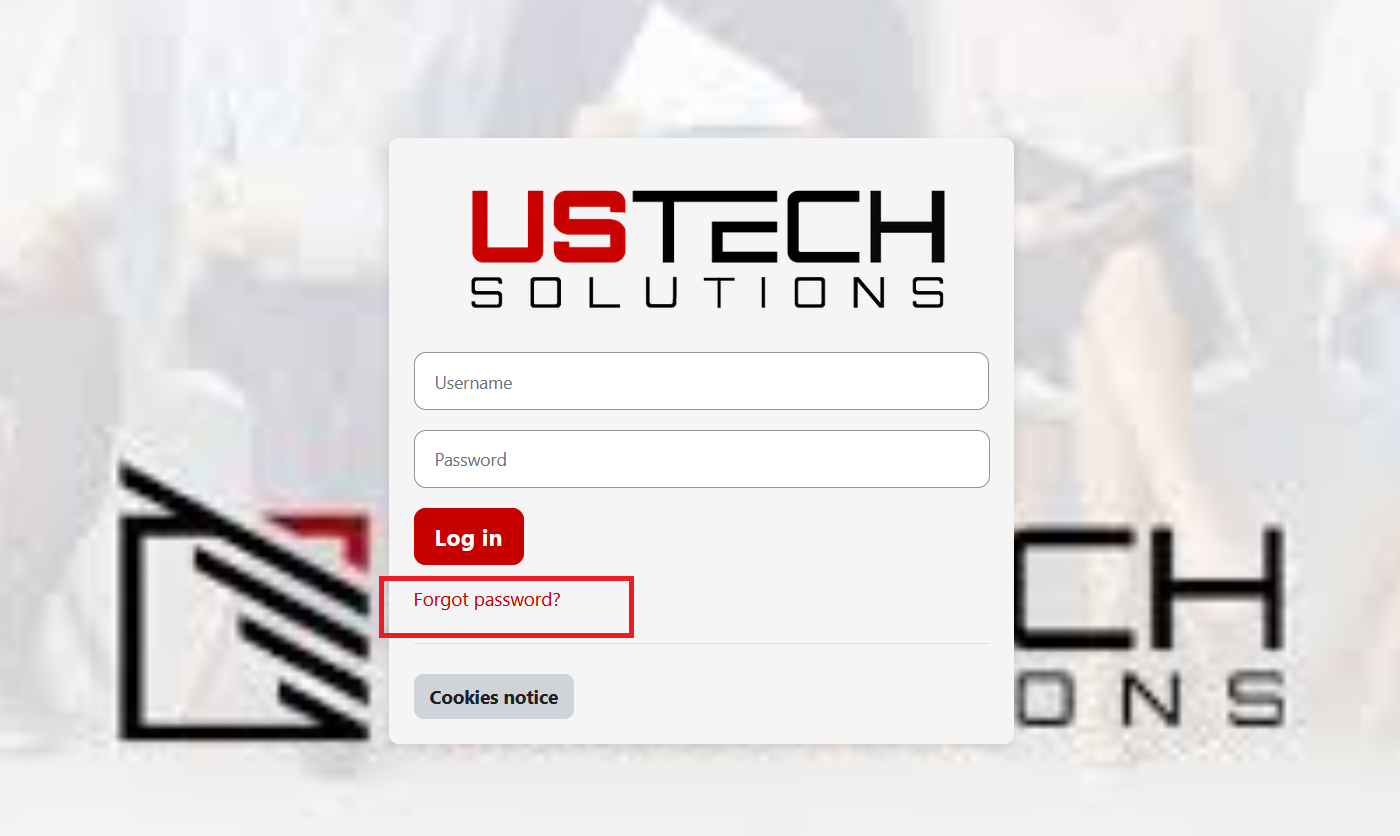
i. Click on 'Forgot password' to navigate to the 'Reset Password' page.
ii. Enter your username or email address, then click the search button. You will receive an email to reset your password.
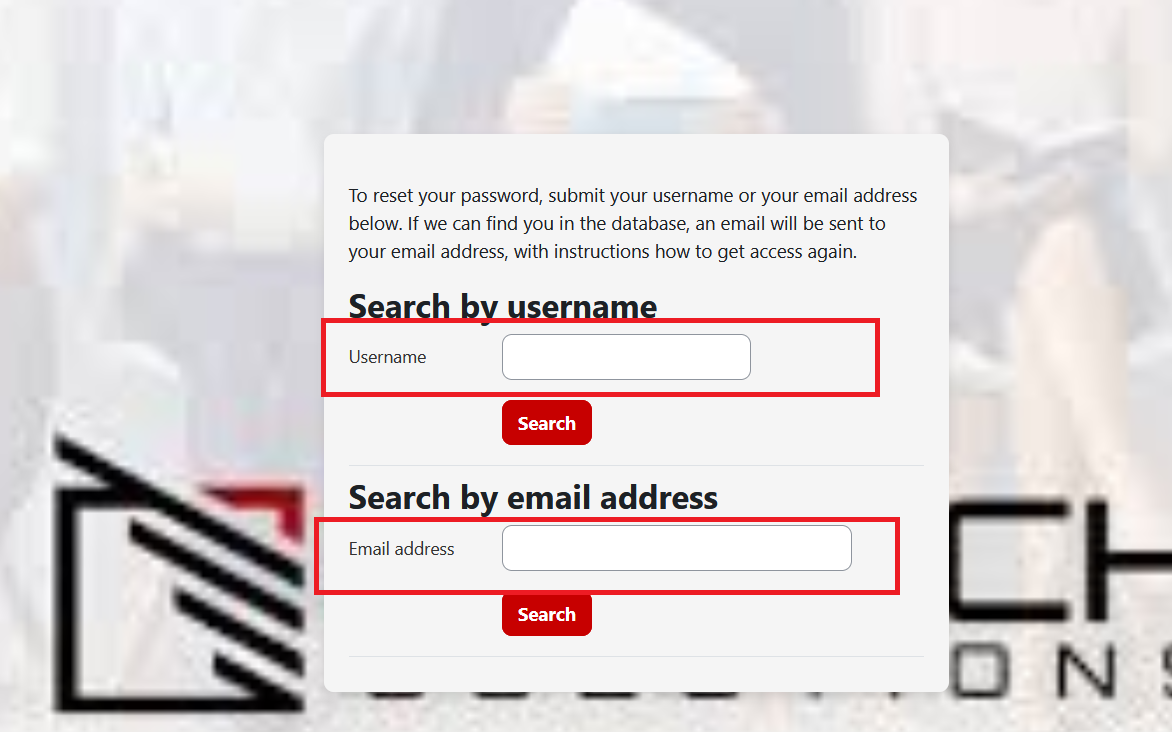
See your enrolled courses, Access calendar, event and site news.
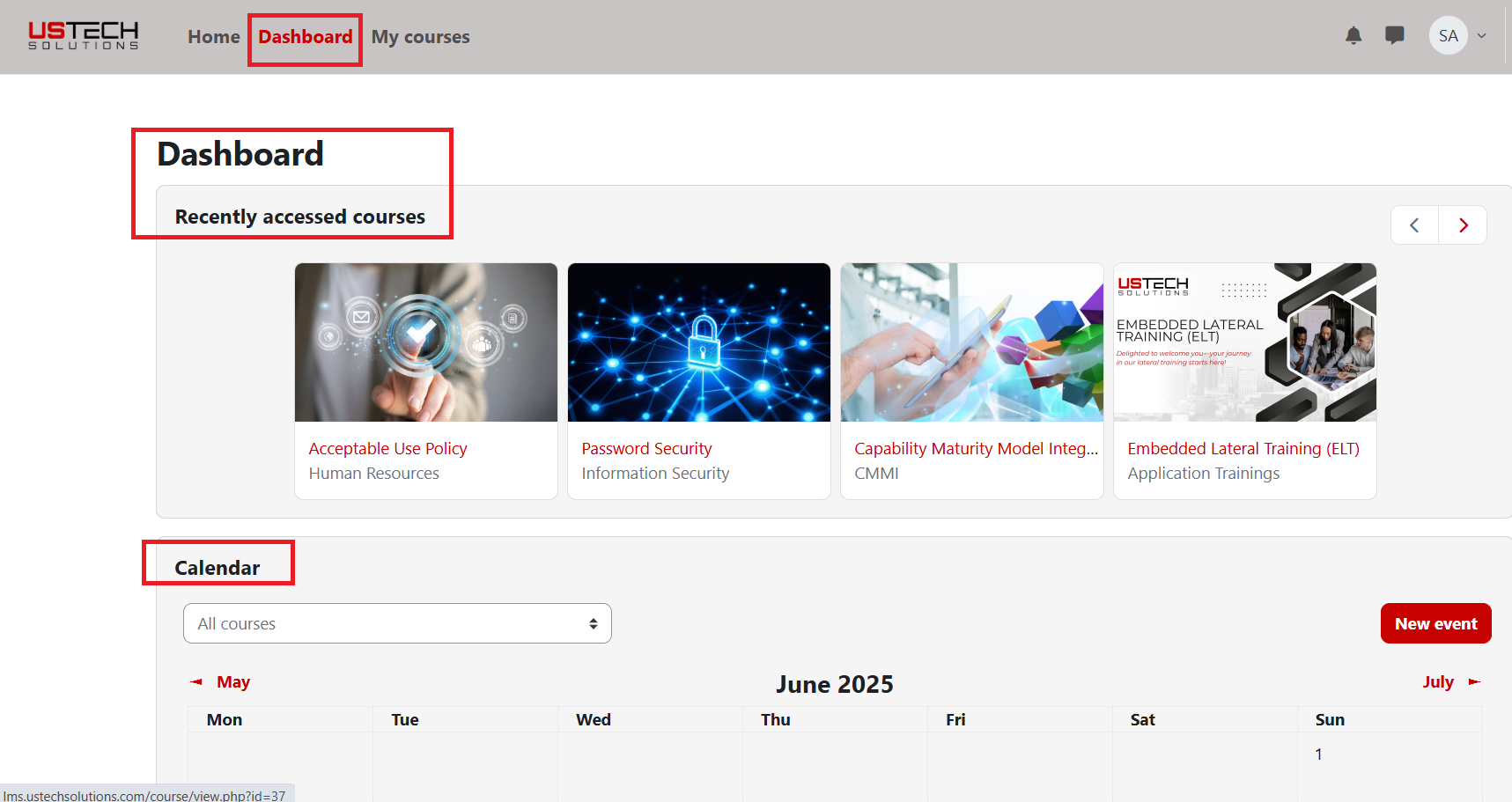
Once you are enrolled in courses you will see them on your My courses page
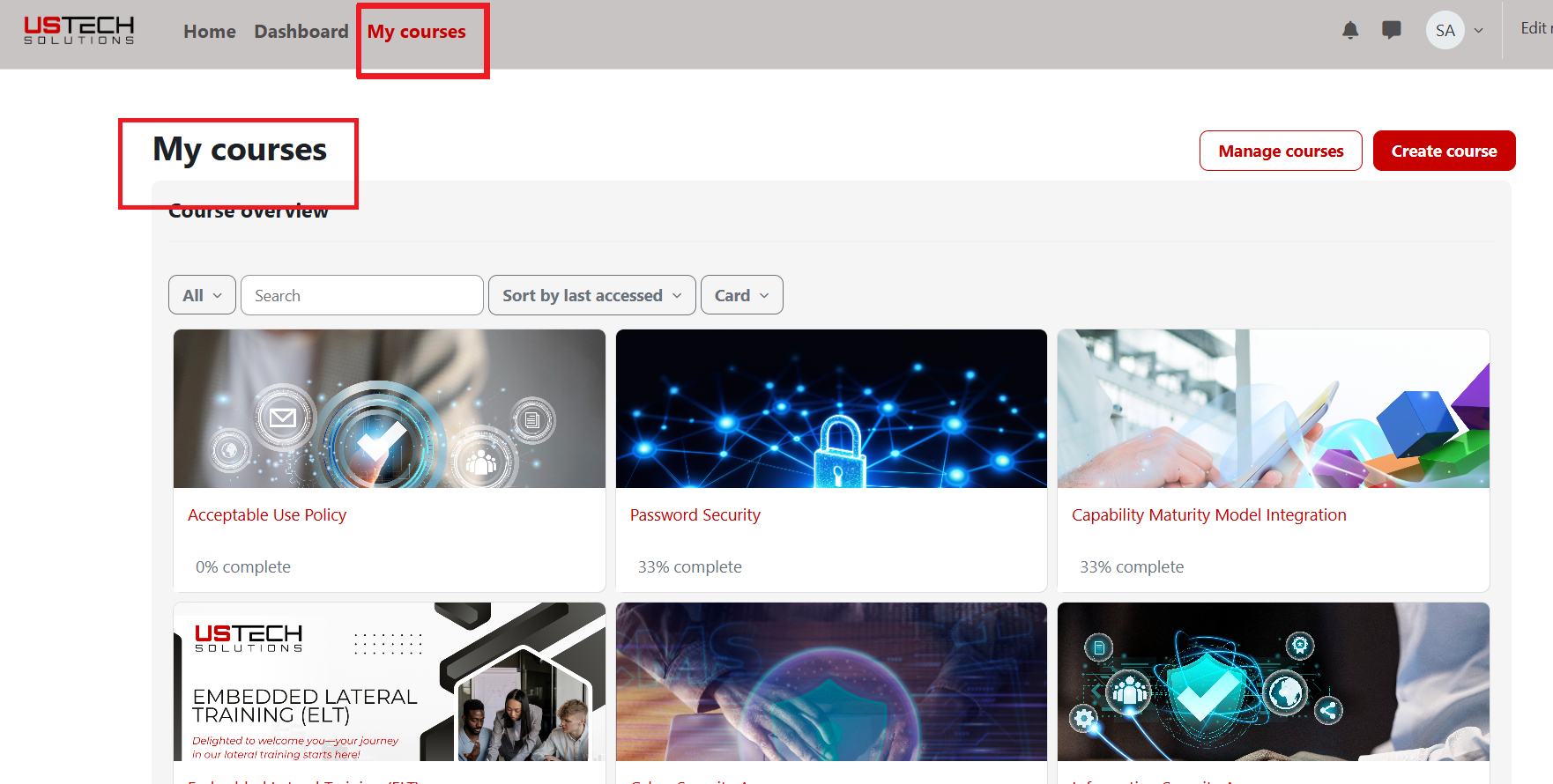
Select the course you want to complete.
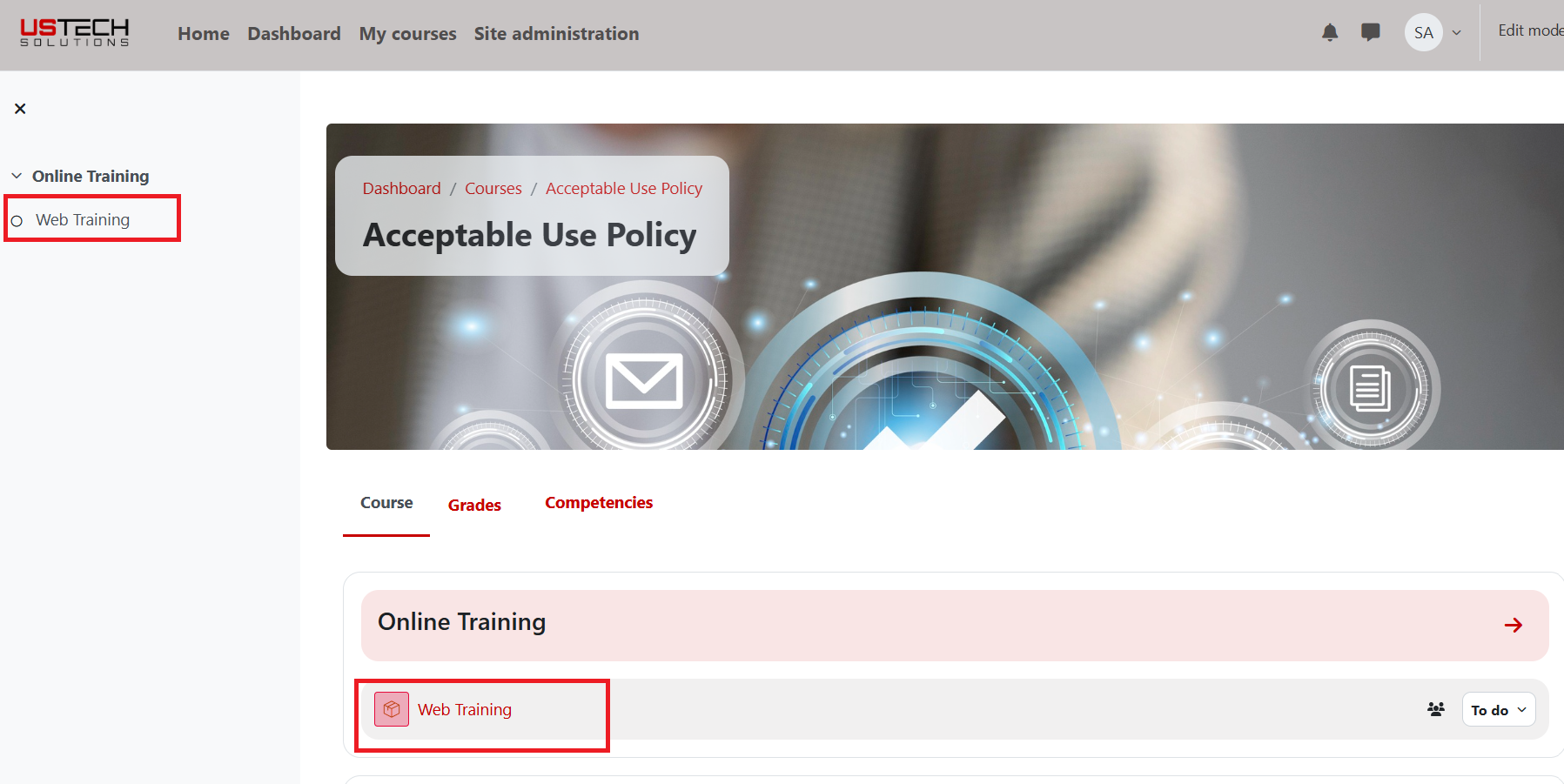
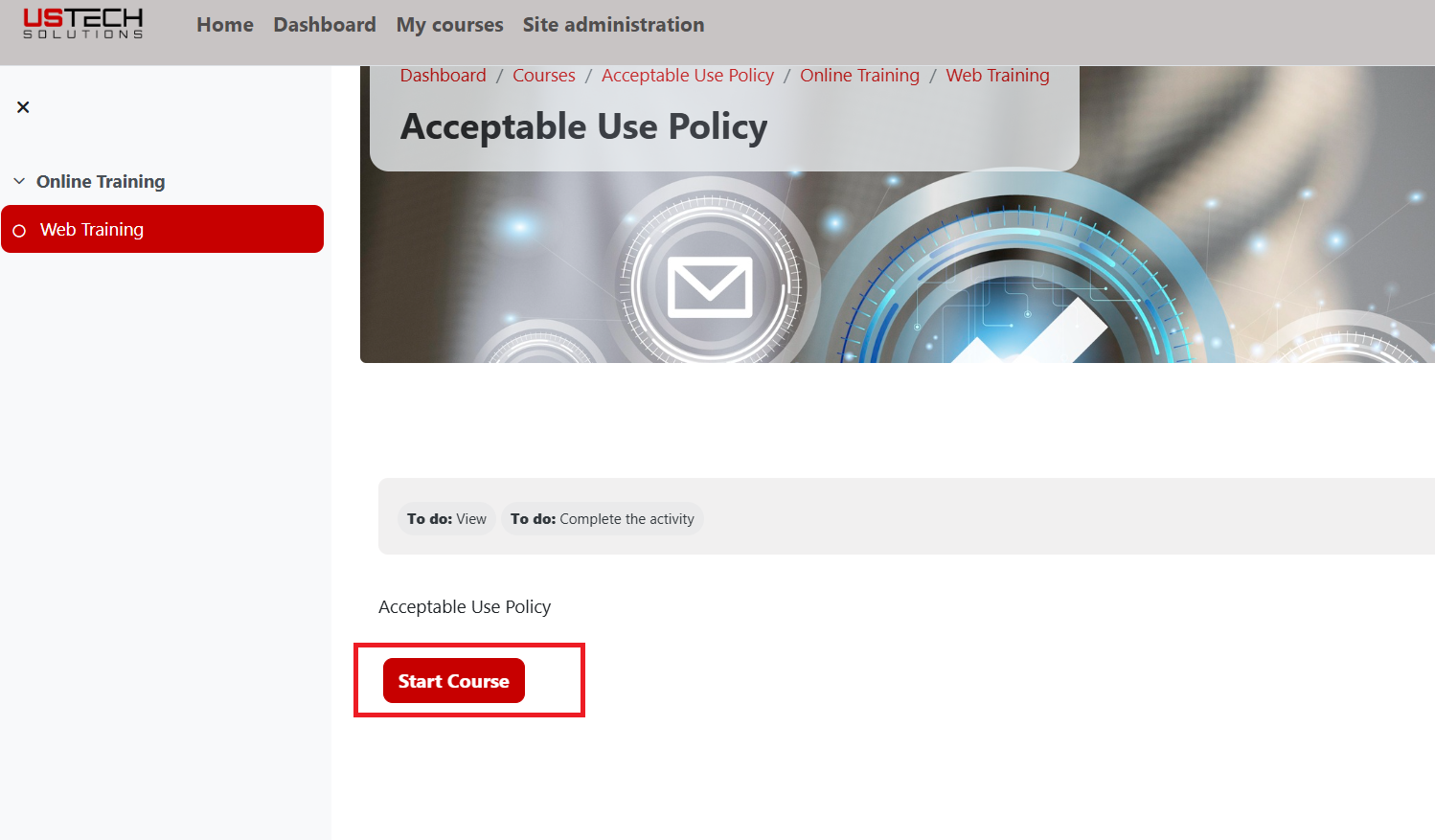
Click on the web Training title and click on “Start Course”.
Refer to the image.
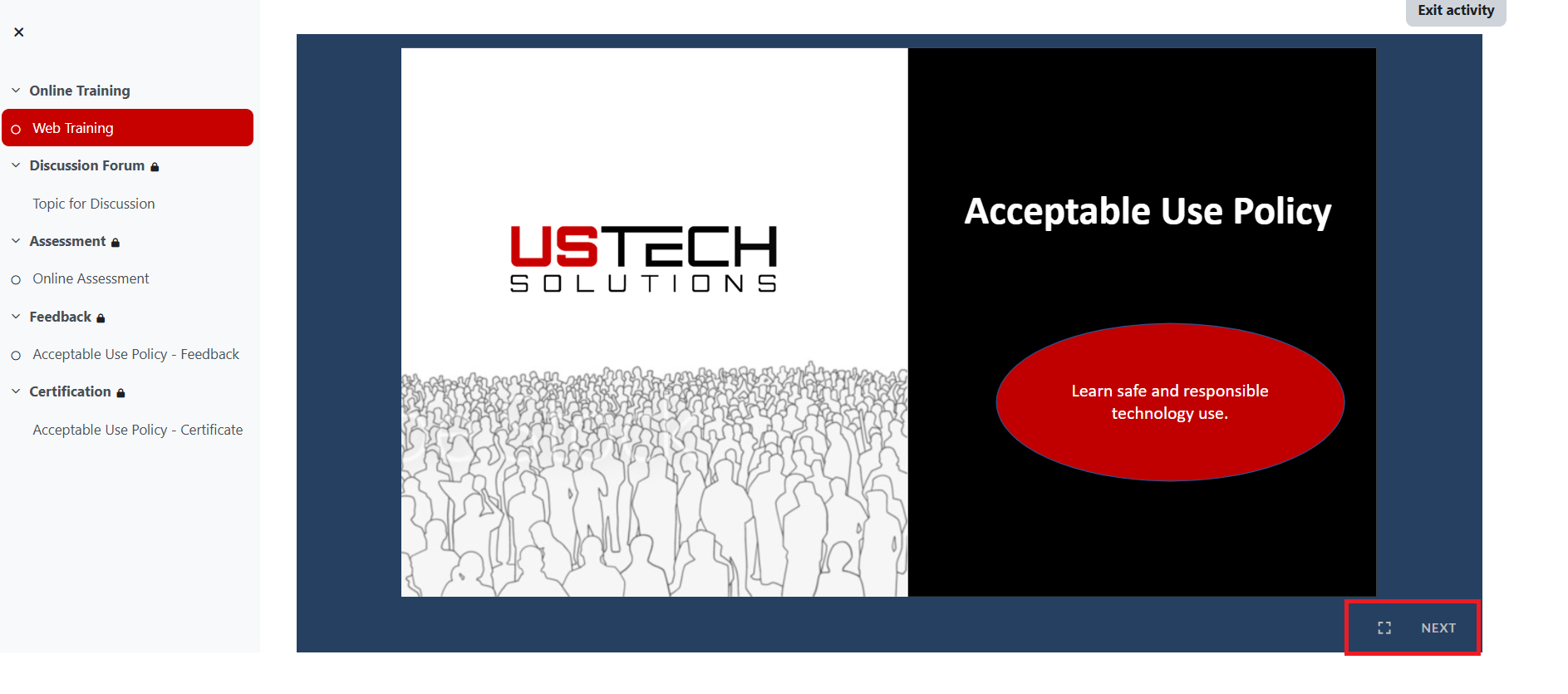
After clicking on “Start Course” button, you will access the training material and in below image you see some content navigation control. Click on the Next button, to navigate to the next page. Also, you can maximize/minimize the window clicking on icon [].
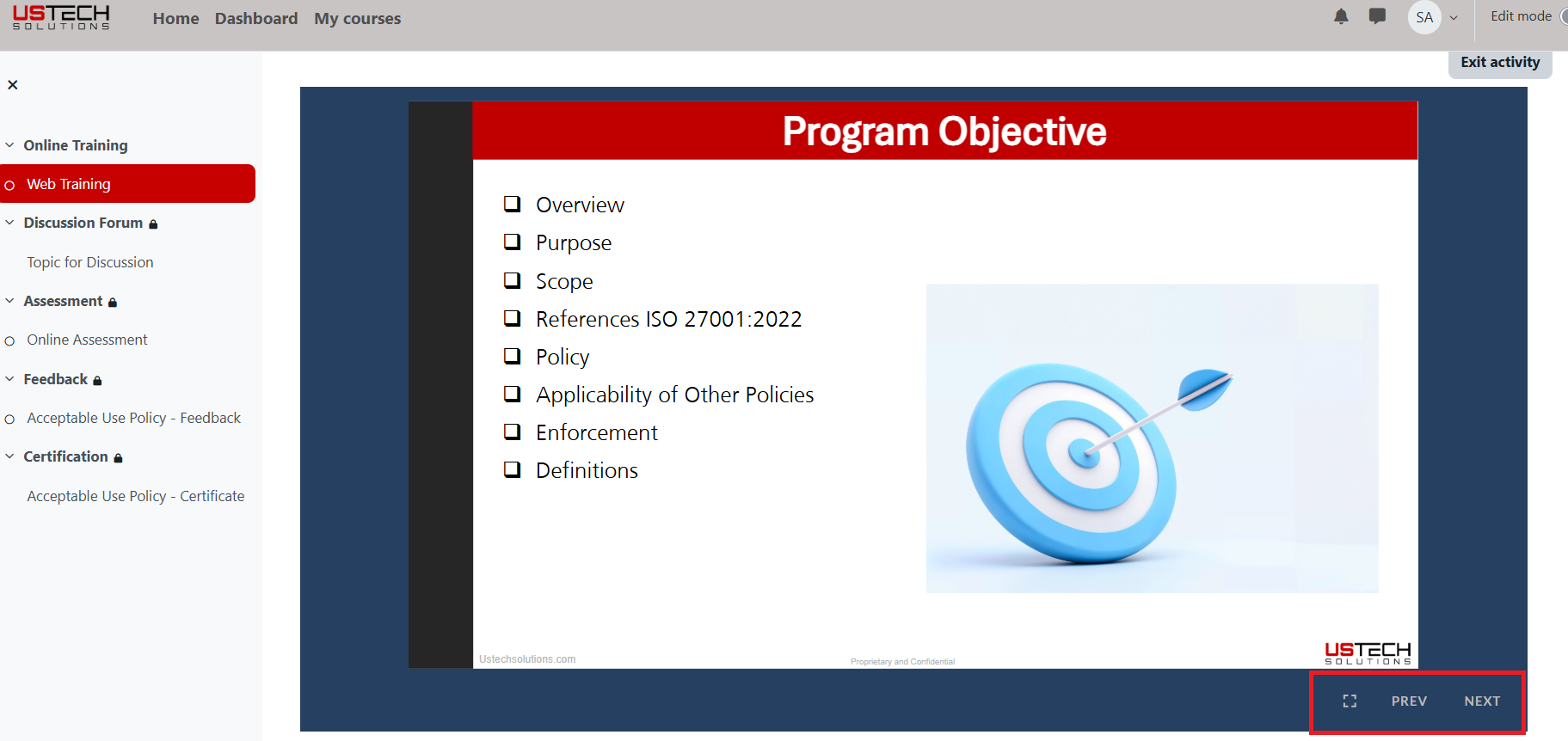
On page 2, Click on previous “PREV” button to go to previous slide.
At last page, you will see 2 buttons “Discussion Forum and Assessment”. Select the Discussion Forum button, it will land on the team discussion page and select the Assessment button, to start the quiz.
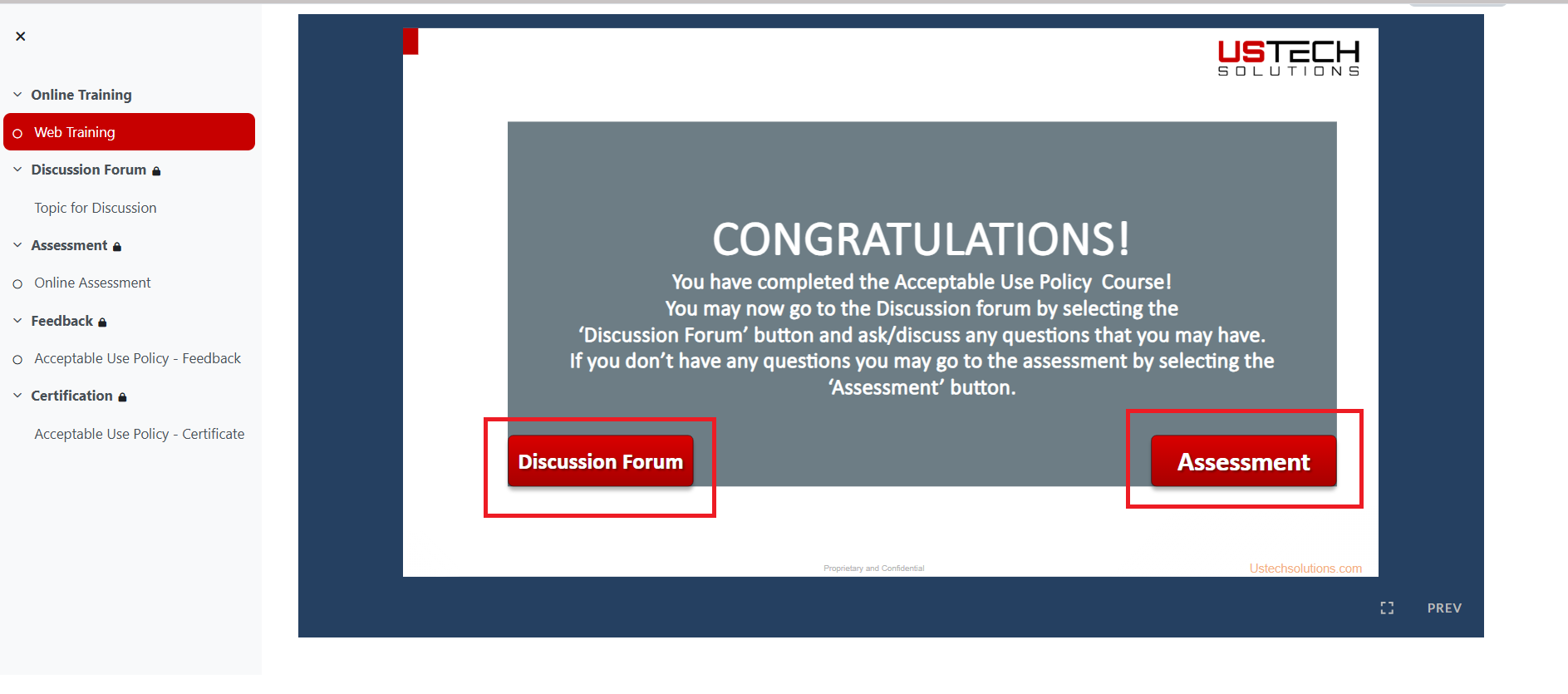
You will be able to unlock the next sections like Quiz/Assessment, and discussion forum etc. only after completing web training
Refer to the image.
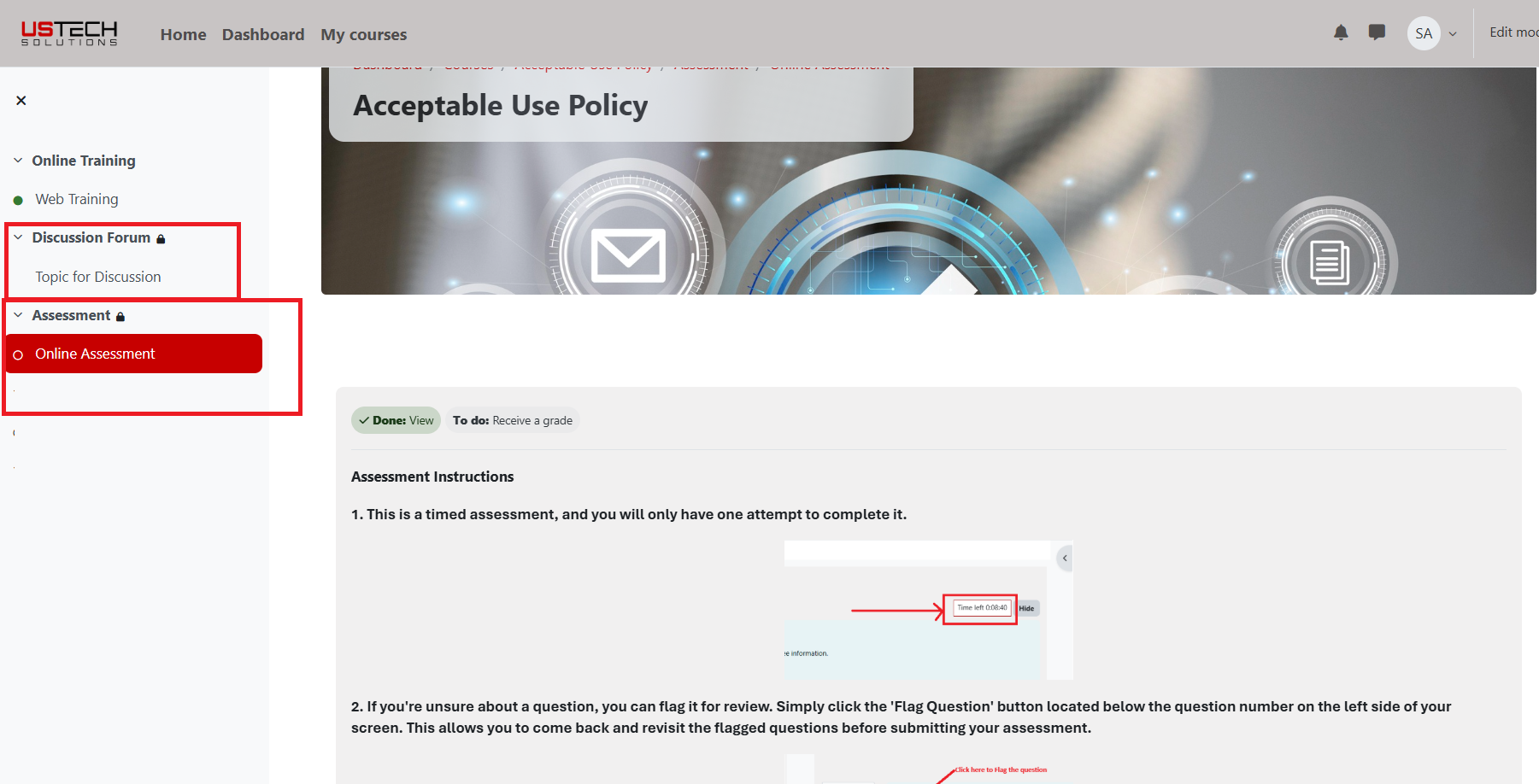
Activities:
Content, Quizzes, Forums, Feedback, and Certification etc.
Note: You will unlock each section one by one after completing the previous section. If you are trying to skip any section, you will not be able to access the next section.
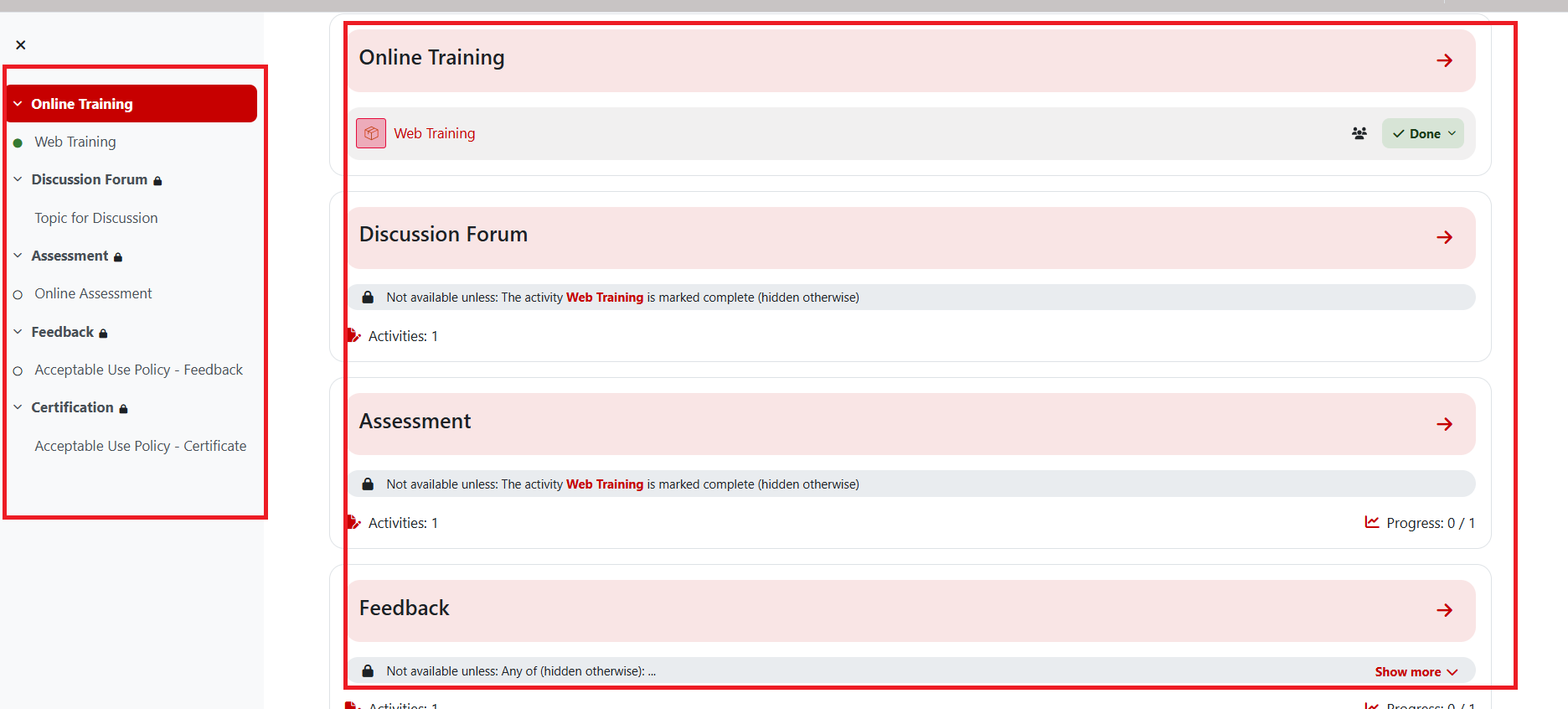
Click on the quiz activity.
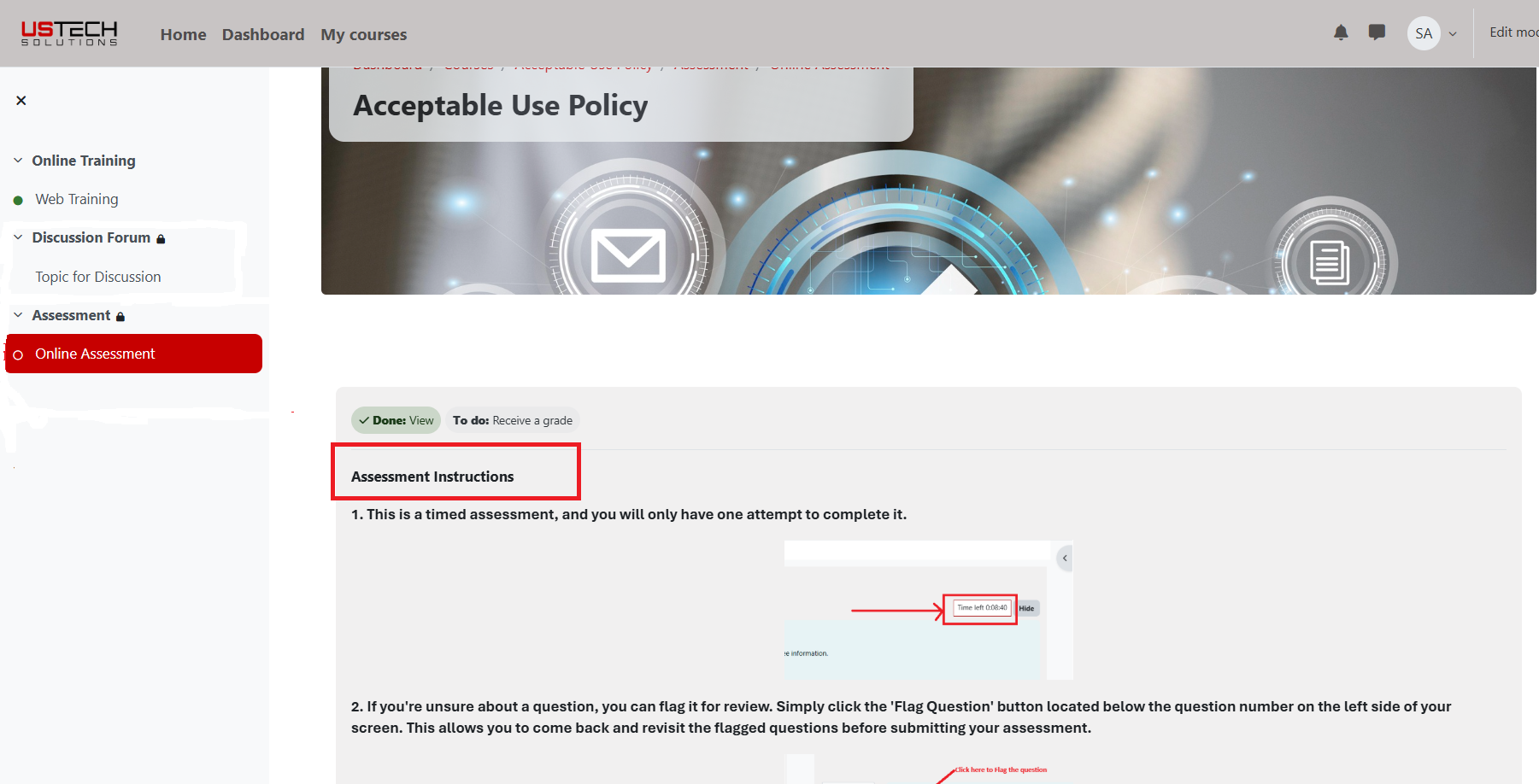
Read instructions and start the attempt. Click on “Attempt Quiz” button.
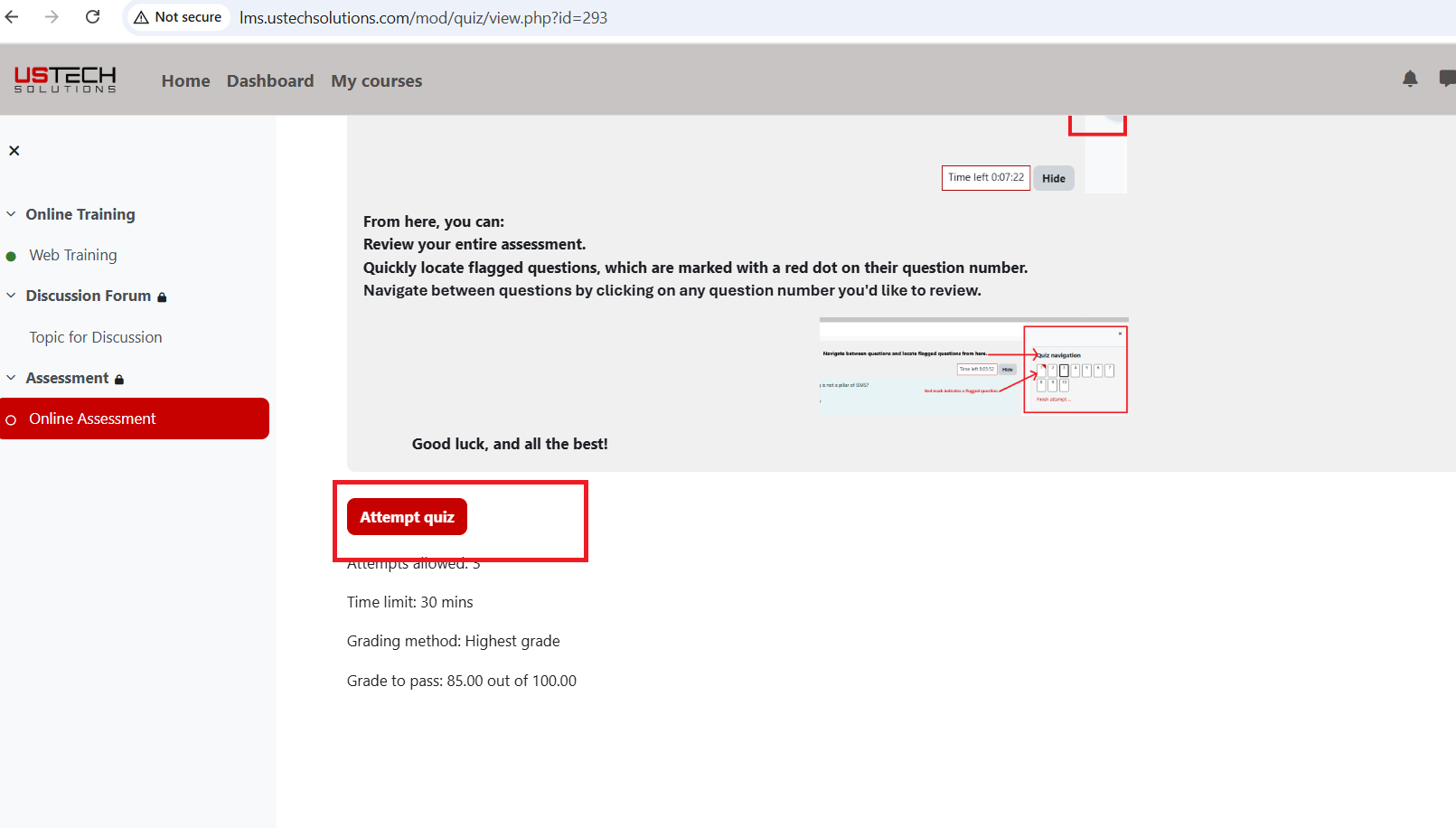
Flag questions which you want to review.
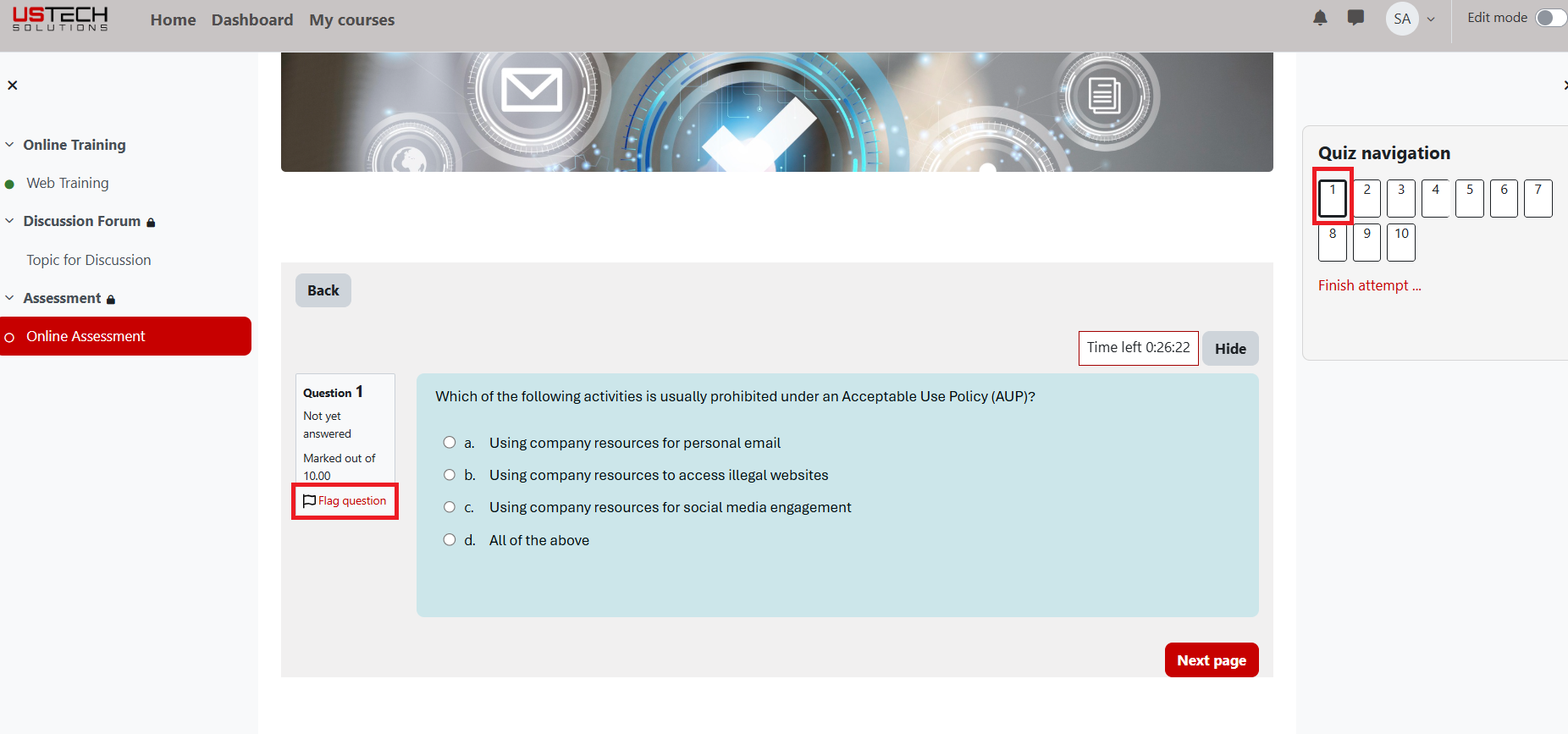
Review the questions.
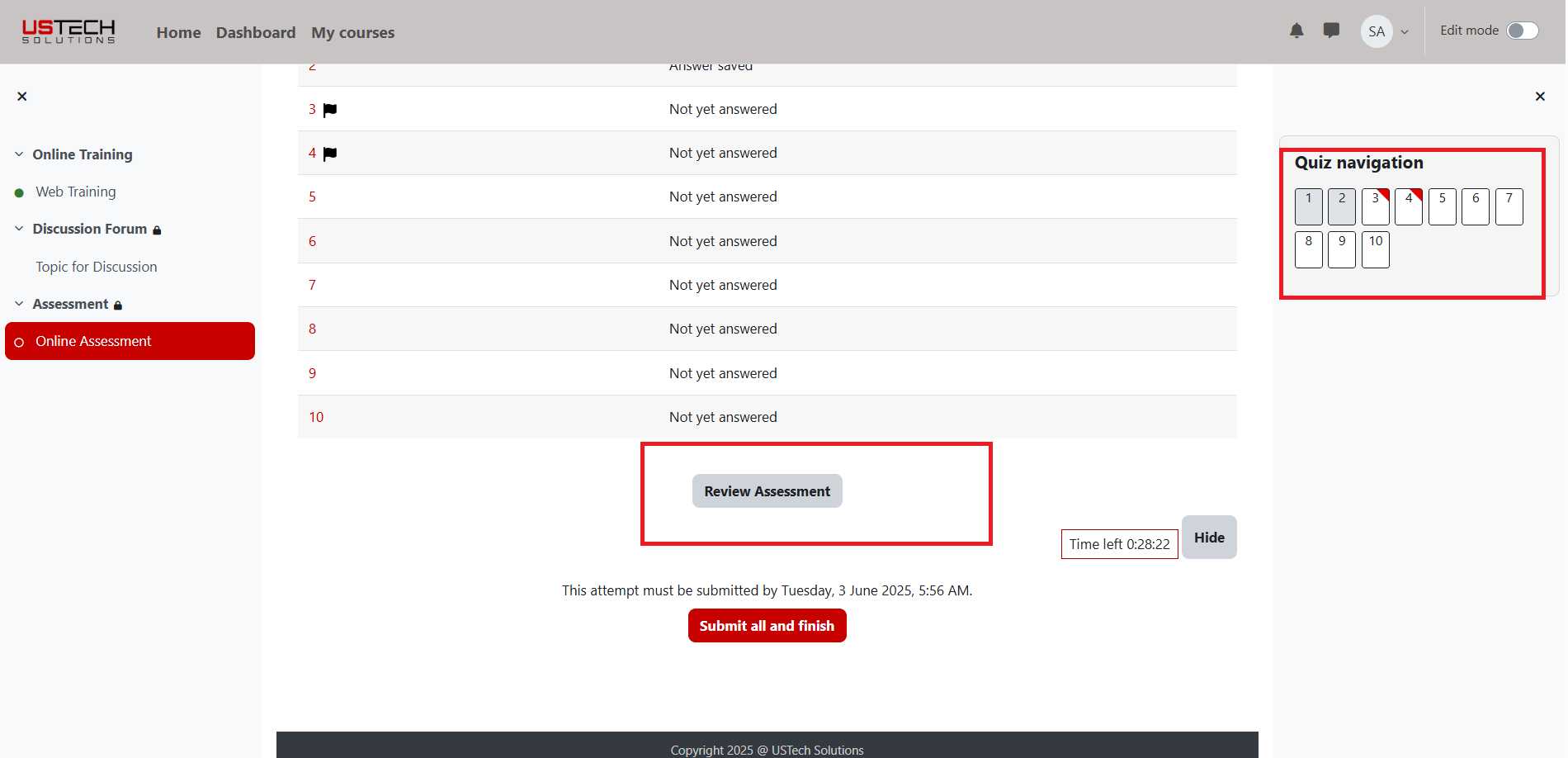
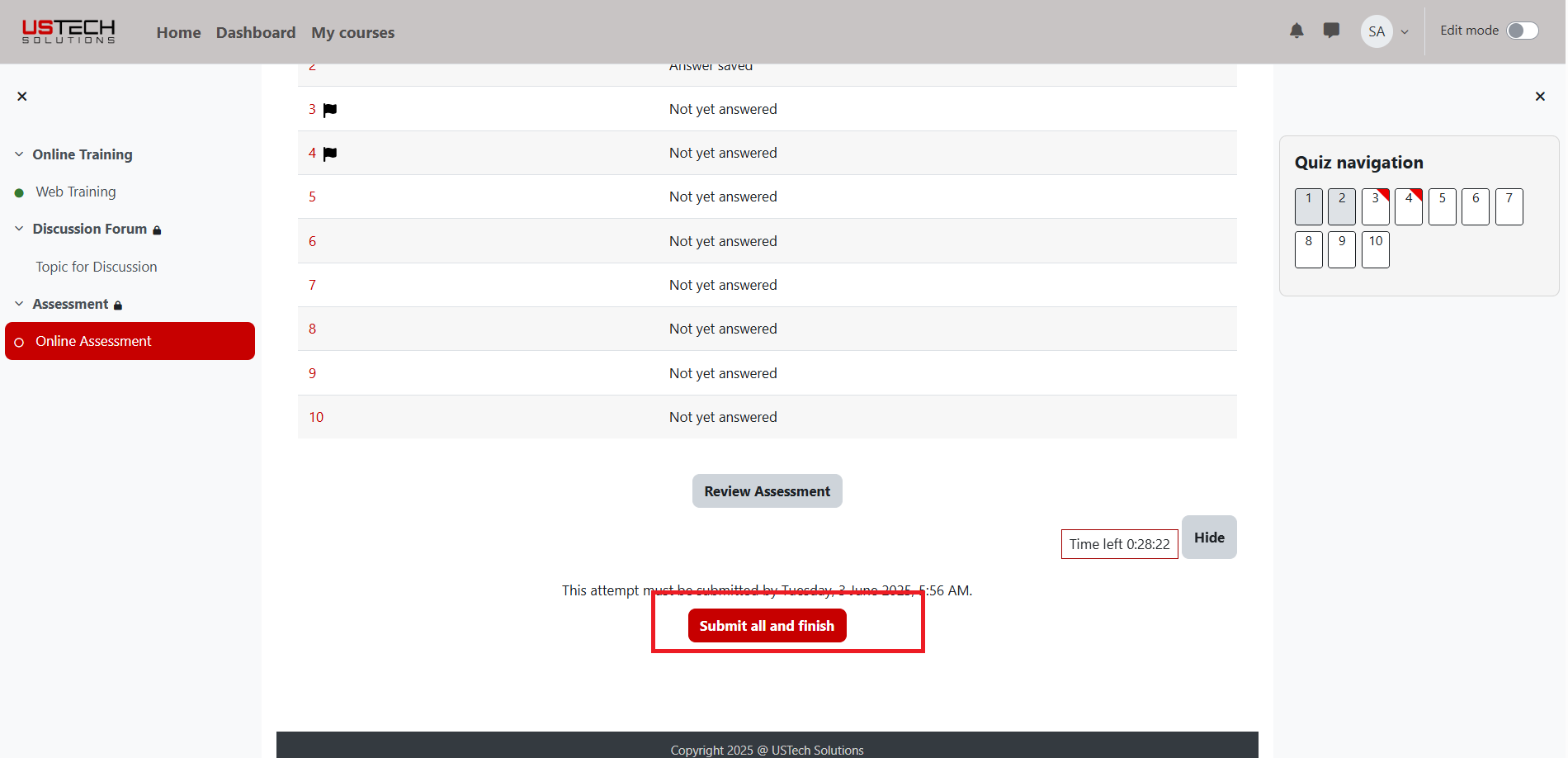
Answer all questions and click “Submit all and finish.
After completing the quiz, Give Feedback:
Note: if you get 85% or more in the assessment to pass the assessment and complete the feedback form to get a certificate. You have 3 attempts to attempt a quiz. If you score 85% or higher, the 'Certification' option in the left panel will be unlocked.
To achieve 100% course completion, you must download the certificate. Otherwise, the course will not be marked as complete.
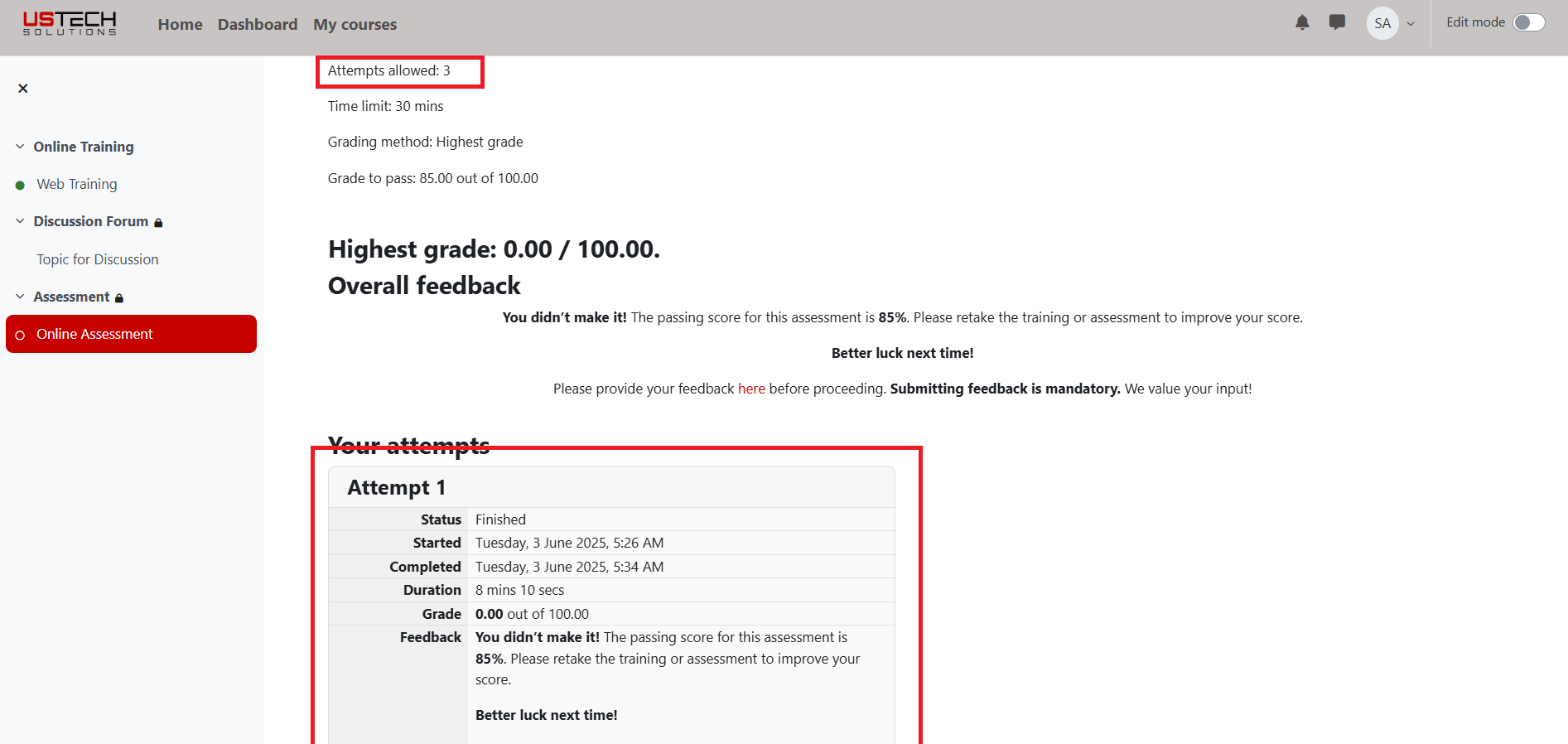
Navigate to the Grades section.
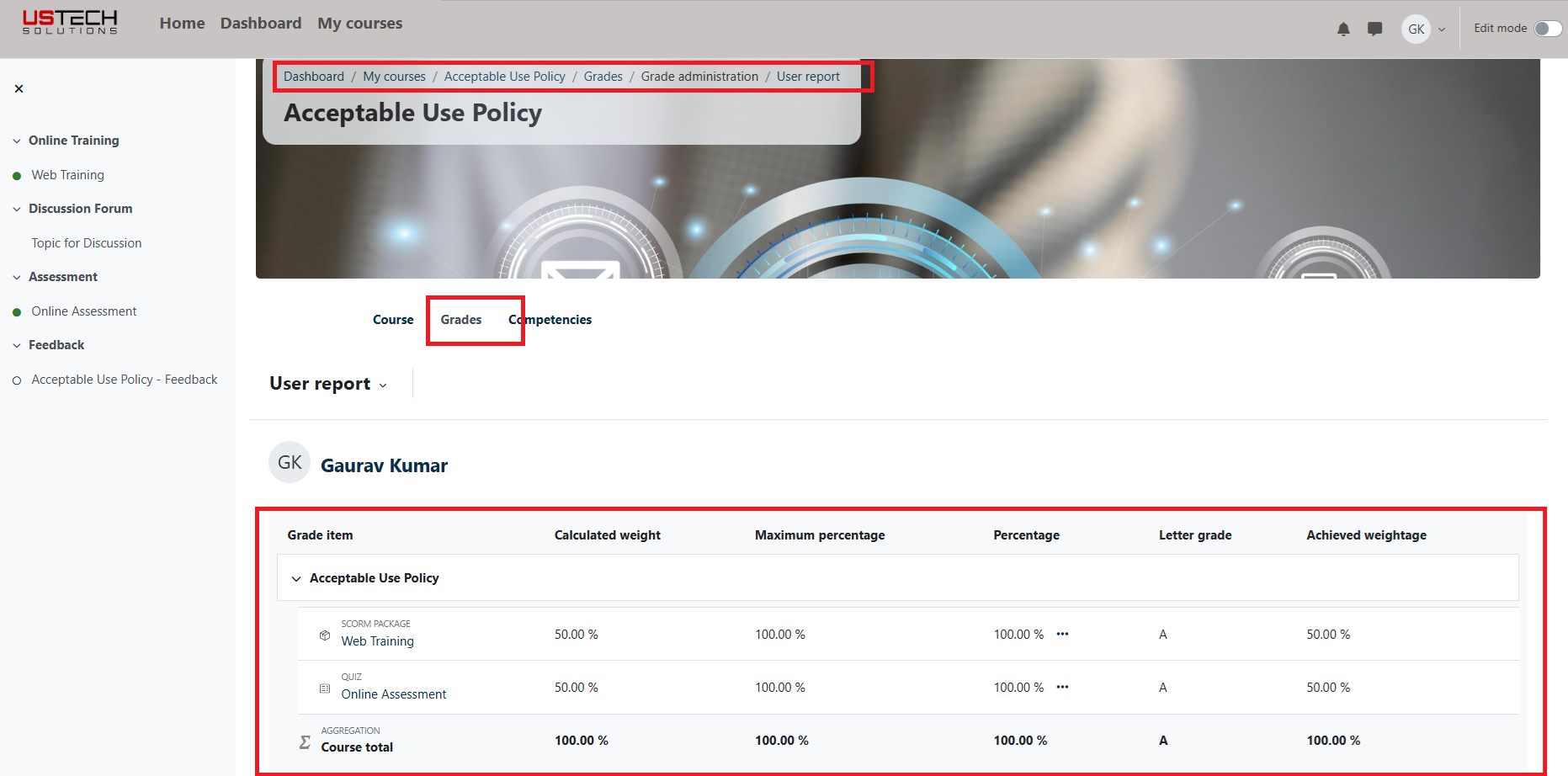
Take feedback.
You can access the feedback form by clicking on the “Submit Feedback” link or using the left content’s tree window by clicking on “Acceptable Use Policy - Feedback” link.
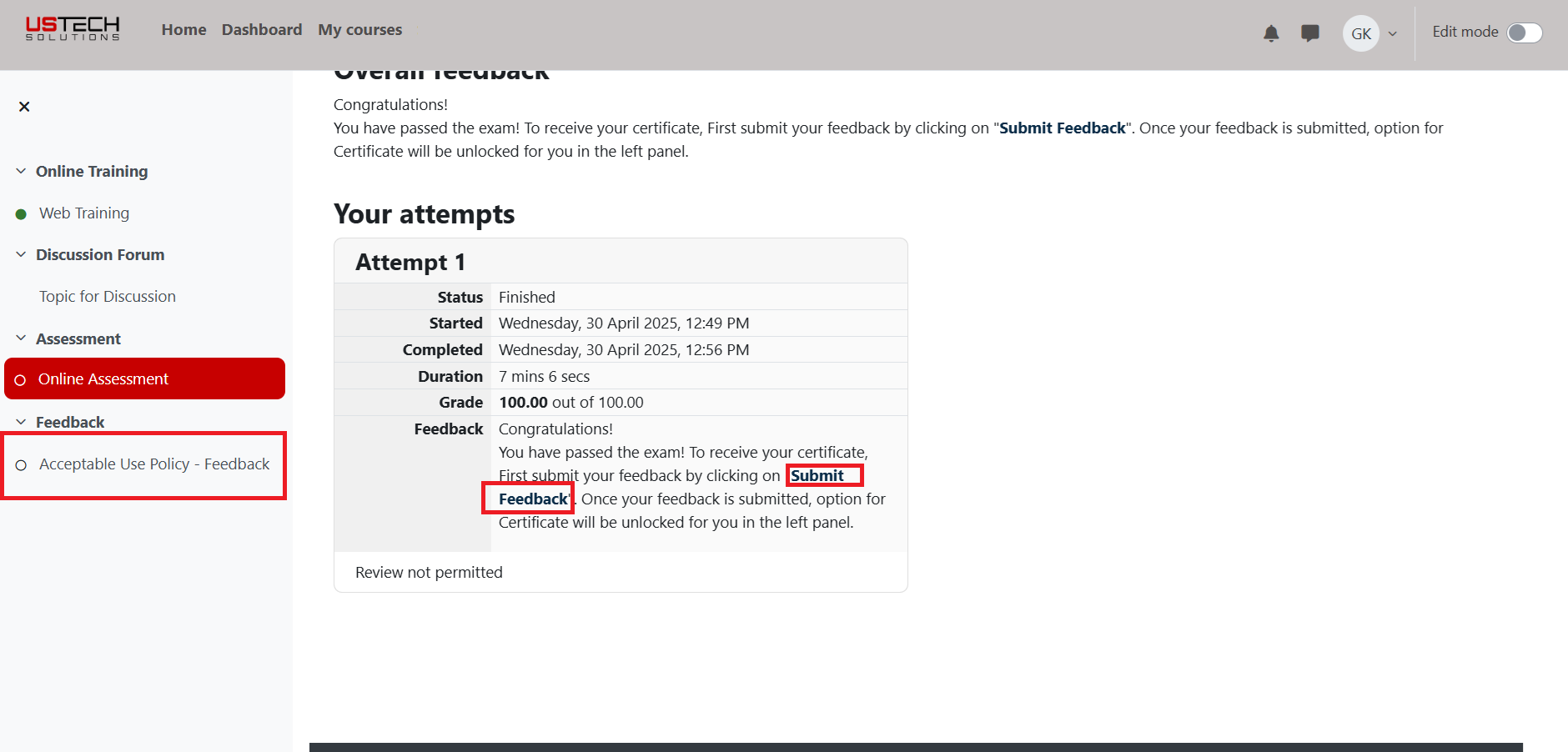
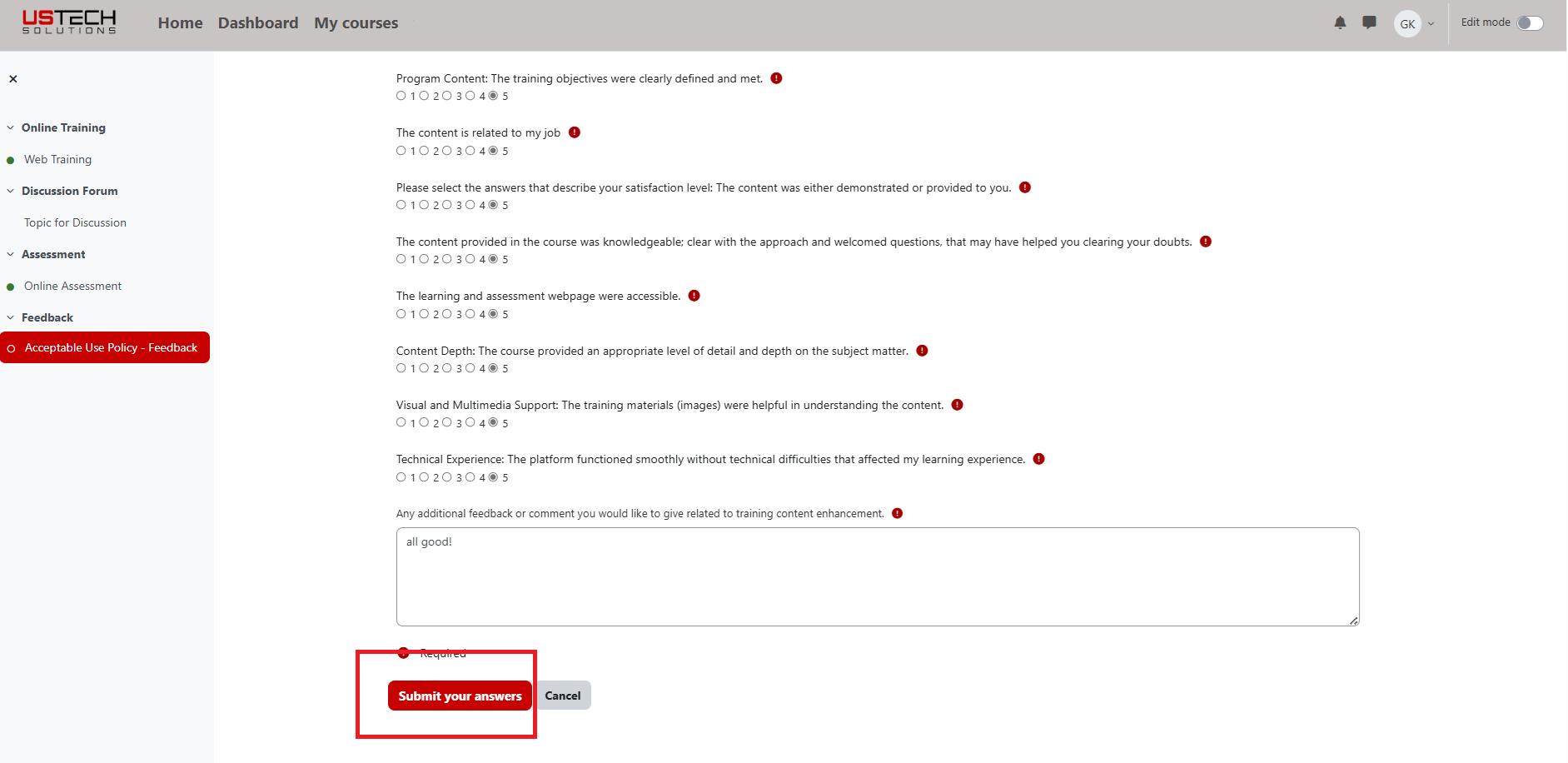
After selecting feedback, you will redirect the feedback page and click on “Answer the questions” button, you will get few feedback questions. Answer the questions and submit.
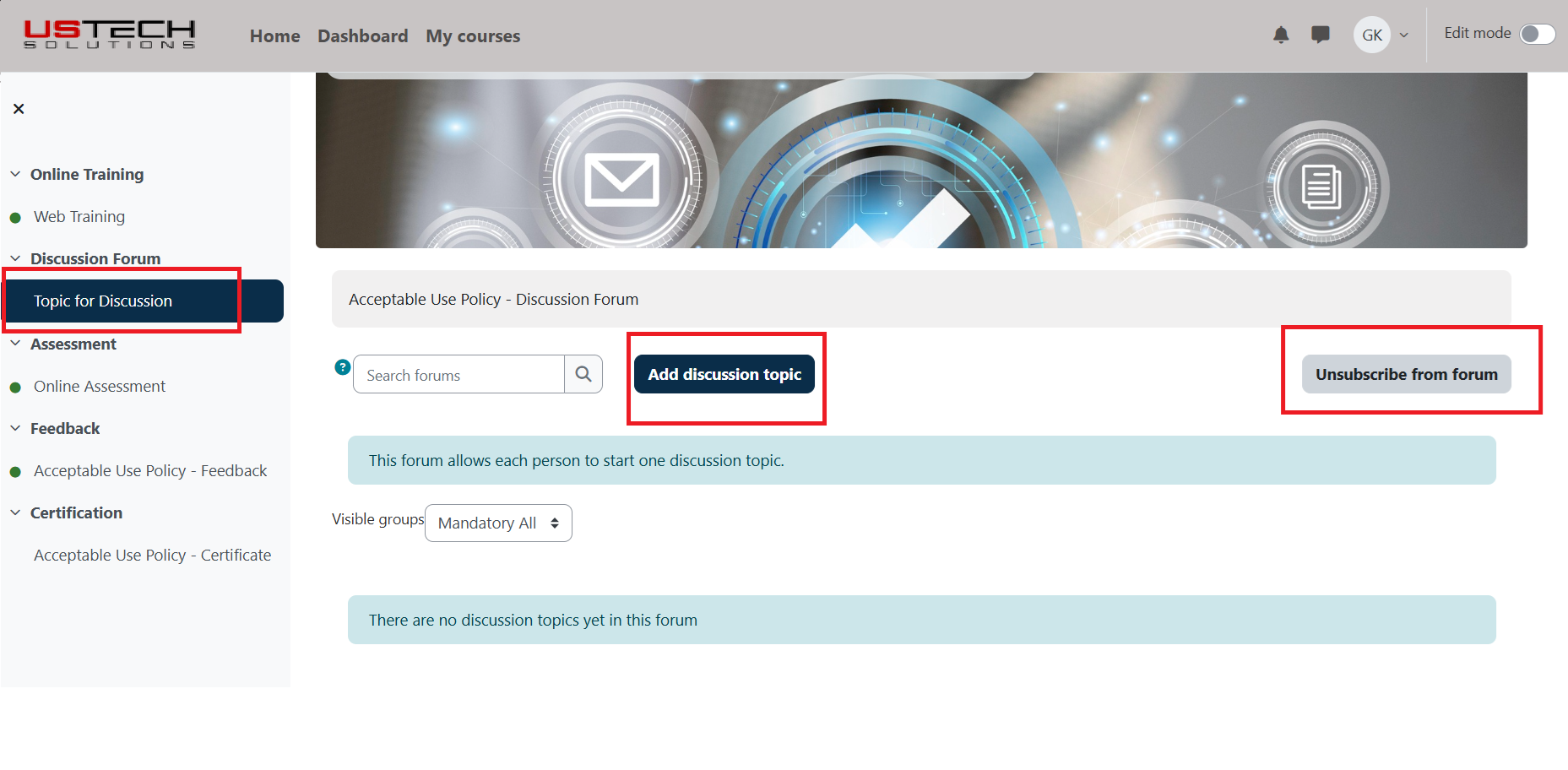
If you are part of any Visible groups, you can join forum by clicking on “Subscribe to forum” button. Participate in forums by replying to posts or starting a new discussion.